WordPress Plugin Vulnerabilities: 7 Mistakes That Compromise Security
Most plugin breaches stem from configuration errors and outdated dependencies rather than flaws in the core codebase itself.
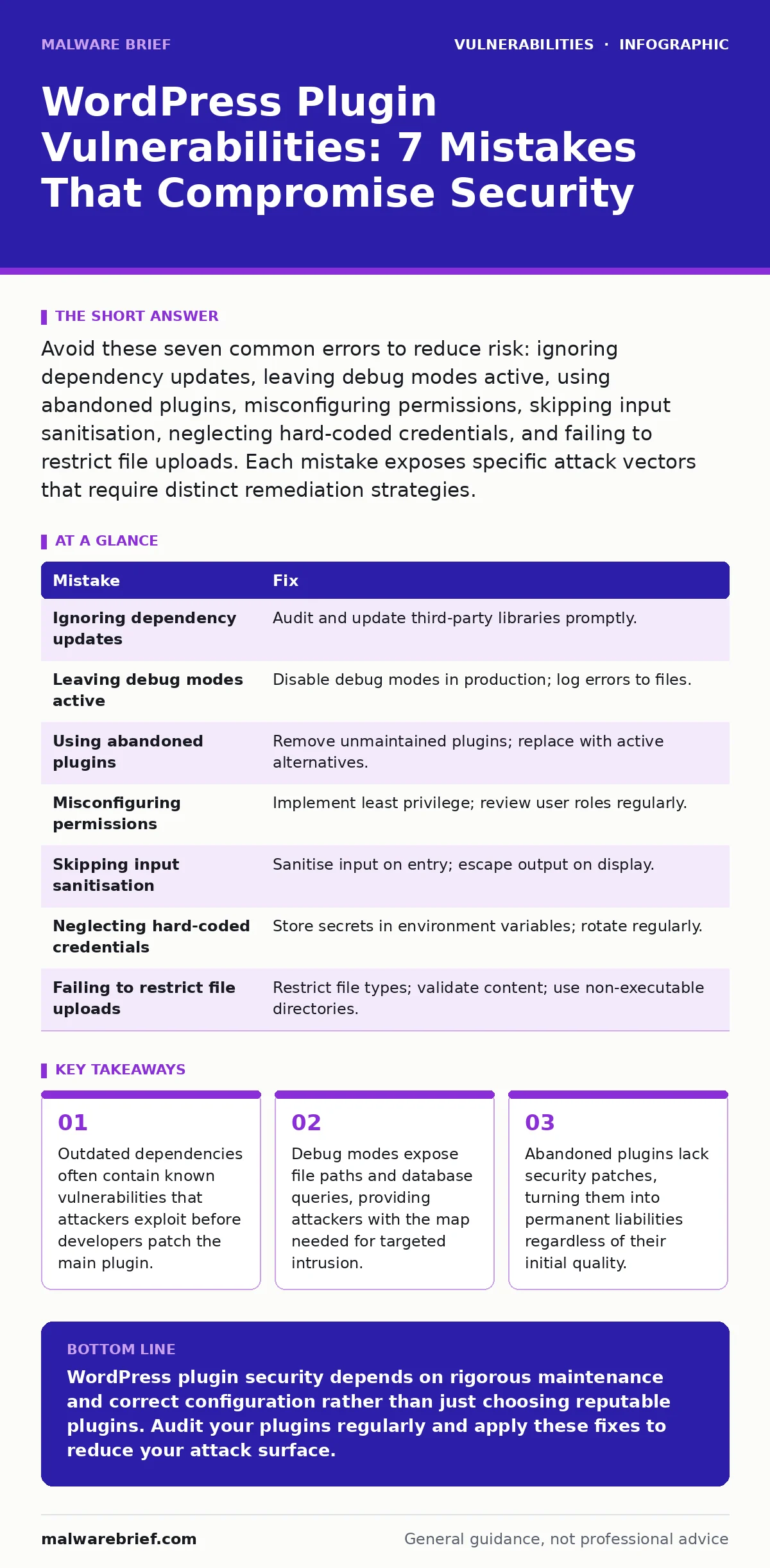
Avoid these seven common errors to reduce risk: ignoring dependency updates, leaving debug modes active, using abandoned plugins, misconfiguring permissions, skipping input sanitisation, neglecting hard-coded credentials, and failing to restrict file uploads. Each mistake exposes specific attack vectors that require distinct remediation strategies.
Mistake 1: Ignoring dependency updates
Developers often focus on the main plugin version while neglecting the libraries it imports. These external libraries, or dependencies, are separate pieces of code that handle specific tasks like image processing or data formatting. When a dependency contains a flaw, the plugin remains vulnerable even if the main code is secure.
Why it hurts: Attackers scan for known vulnerabilities in popular libraries. If your plugin uses an old version of a library with a public exploit, attackers can compromise your site without finding a flaw in the plugin itself. This mirrors the risks found in dependency updates for general web applications, where the supply chain is the weak link.
The fix: Audit all third-party libraries used by your plugins. Subscribe to security advisories for major libraries. Update dependencies promptly when patches are released. Use automated tools to scan for outdated components during your development cycle.
Mistake 2: Leaving debug modes active
Debug modes are designed to help developers find errors by displaying detailed information on the screen. This includes file paths, database query structures, and variable contents. While useful during development, this information is dangerous in a production environment.
Why it hurts: Exposed file paths reveal the server structure, allowing attackers to target specific directories. Database query errors can disclose table names and column structures, facilitating SQL injection attacks. This information leakage reduces the effort required for an attacker to craft a successful exploit.
The fix: Disable debug modes in production environments. Configure error logging to write to a file rather than displaying output to the user. Ensure that error pages return generic messages that do not reveal internal system details. Regularly review logs for anomalies.
Mistake 3: Using abandoned plugins
Plugins that are no longer maintained become liabilities over time. The WordPress ecosystem evolves, and new threats emerge regularly. Without active maintenance, these plugins do not receive security patches for newly discovered vulnerabilities.
Why it hurts: An abandoned plugin may have worked perfectly for years, but it will eventually become incompatible with security standards or contain unpatched flaws. This situation is similar to end-of-life software, where the vendor stops providing support, leaving users exposed to new attack vectors without recourse.
The fix: Regularly audit your plugin list for maintenance status. Remove plugins that have not been updated in the last two years. Replace them with actively maintained alternatives. If no alternative exists, consider removing the functionality entirely.
Mistake 4: Misconfiguring permissions
Plugins often require specific user roles to function correctly. Misconfiguring these permissions can grant excessive access to users who do not need it. This includes allowing low-privilege users to access administrative functions or modify critical settings.
Why it hurts: Excessive permissions allow an attacker who compromises a low-level account to escalate privileges. This is a form of broken access control, where the system fails to enforce proper boundaries between user roles. An attacker can then modify plugin settings, install malicious code, or exfiltrate data.
The fix: Implement the principle of least privilege. Grant users only the permissions they need to perform their specific tasks. Regularly review user roles and remove unnecessary access. Use role management plugins to enforce strict permission boundaries.
Mistake 5: Skipping input sanitisation
Input sanitisation involves cleaning and validating data before it is processed by the application. Many plugins fail to sanitise user input, assuming that the WordPress core handles this task. This assumption is incorrect, as plugins often handle data in unique ways.
Why it hurts: Unsanitised input can lead to cross-site scripting (XSS) or SQL injection. Attackers can inject malicious code into forms, comments, or profile fields. When this code is executed, it can steal session cookies, redirect users to malicious sites, or manipulate database records.
The fix: Sanitise all user input on entry and escape all output on display. Use built-in WordPress functions for sanitisation and escaping. Validate data against expected formats before processing. Never trust user input, regardless of its source.
Mistake 6: Neglecting hard-coded credentials
Some plugins store database passwords, API keys, or authentication tokens directly in the code. This practice, known as hard-coded credentials, makes it difficult to rotate secrets and increases the risk of exposure.
Why it hurts: If the plugin source code is exposed through a vulnerability or a public repository, attackers can extract these credentials. They can then access the database or external services linked to the plugin. This is a common issue in IoT device vulnerabilities, where default passwords are often left unchanged.
The fix: Store credentials in environment variables or configuration files that are excluded from version control. Use a secrets management solution to handle sensitive data. Rotate credentials regularly and monitor for unauthorised access attempts.
Mistake 7: Failing to restrict file uploads
Plugins that allow file uploads must strictly control the types of files users can submit. Allowing unrestricted file uploads can enable attackers to upload malicious scripts or executables.
Why it hurts: An attacker can upload a web shell, which is a script that provides remote access to the server. Once uploaded, the attacker can execute arbitrary commands, deface the site, or pivot to other systems on the network. This risk is amplified if the upload directory is executable.
The fix: Restrict file uploads to specific, safe file types. Validate file content, not just the extension, to prevent disguised malicious files. Store uploaded files in a non-executable directory. Regularly scan uploaded files for malware.
| Mistake | Fix |
|---|---|
| Ignoring dependency updates | Audit and update third-party libraries promptly. |
| Leaving debug modes active | Disable debug modes in production; log errors to files. |
| Using abandoned plugins | Remove unmaintained plugins; replace with active alternatives. |
| Misconfiguring permissions | Implement least privilege; review user roles regularly. |
| Skipping input sanitisation | Sanitise input on entry; escape output on display. |
| Neglecting hard-coded credentials | Store secrets in environment variables; rotate regularly. |
| Failing to restrict file uploads | Restrict file types; validate content; use non-executable directories. |
Key takeaways
- Outdated dependencies often contain known vulnerabilities that attackers exploit before developers patch the main plugin.
- Debug modes expose file paths and database queries, providing attackers with the map needed for targeted intrusion.
- Abandoned plugins lack security patches, turning them into permanent liabilities regardless of their initial quality.
WordPress plugin security depends on rigorous maintenance and correct configuration rather than just choosing reputable plugins. Audit your plugins regularly and apply these fixes to reduce your attack surface.
Frequently asked questions
How often should I update my WordPress plugins?
Update plugins as soon as security patches are released. Regular updates ensure you have the latest protections against known vulnerabilities.
Can I use a plugin to manage other plugins?
Yes, management plugins can help track updates and usage. However, they do not replace the need for manual security audits and configuration reviews.
What if a plugin has no alternative?
If a critical plugin has no active alternative, consider isolating its functionality or rewriting it. Running unmaintained code is a significant security risk.
Do I need to scan for malware if I follow these practices?
Yes, regular malware scanning is still necessary. No security measure is perfect, and scanning helps detect breaches that bypass preventive controls.
How this guide was produced: written by the Malware Brief editorial team with AI assistance, checked against the public references listed below, and reviewed when the facts change. See our editorial policy or report an error.