How to Prevent Mac Malware: The Layers That Actually Work
Relying on built-in security alone leaves gaps; effective defence requires configuring Gatekeeper, managing permissions, and understanding how macro malware executes.
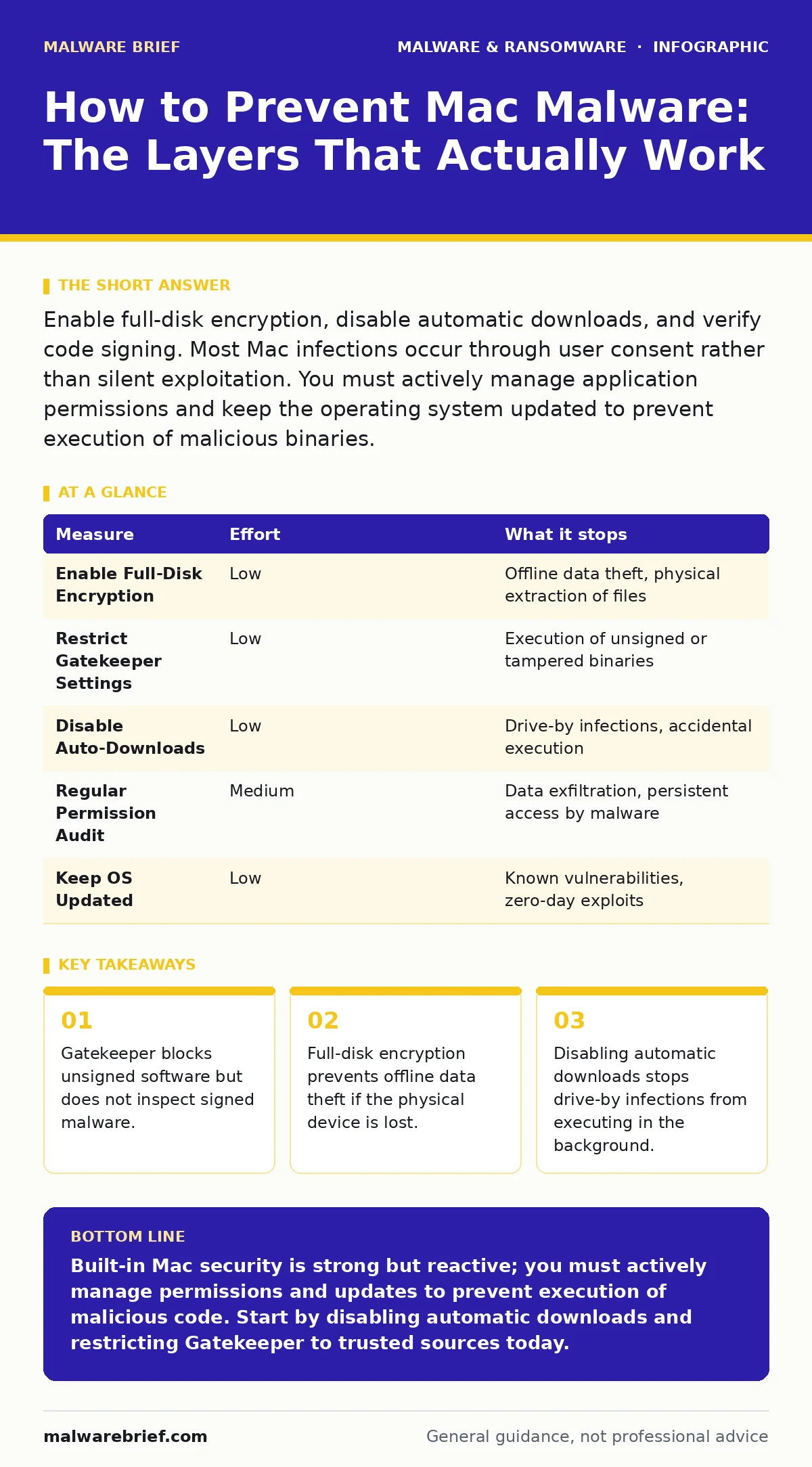
Enable full-disk encryption, disable automatic downloads, and verify code signing. Most Mac infections occur through user consent rather than silent exploitation. You must actively manage application permissions and keep the operating system updated to prevent execution of malicious binaries.
The Illusion of Immunity
Mac users often assume their platform is immune to infection. This belief stems from the Unix foundation and the App Store ecosystem, which reduces exposure compared to other operating systems. However, threat actors target Macs because they offer access to corporate networks and high-value data. The operating system provides strong defaults, but these defaults are not absolute barriers. You must understand what the system does and does not protect against.
The primary misconception is that the hardware alone prevents malware. The silicon provides secure boot and encrypted storage, but it cannot stop a user from granting permissions to a malicious application. Once an application is running with sufficient privileges, it can bypass many internal checks. Your behaviour determines the security posture of the machine.
Hardening the Execution Environment
Gatekeeper is the primary mechanism that prevents unverified software from running. It checks the digital signature of an application against Apple’s records. If the signature is missing or invalid, the system blocks execution. This stops the vast majority of casual infections. However, it does not inspect the content of the application. A malicious file can have a valid signature if the developer account was compromised or if the malware was signed before being distributed.
You can tighten this control by restricting installations to the App Store and identified developers. This setting prevents any unsigned code from running, even if you click "Open" in the dialog box. It adds friction to the installation process, which is the desired outcome. Friction reduces impulsive actions that lead to infection.
Full-disk encryption is enabled by default on most modern Macs. It ensures that data on the drive is unreadable without the login password. This protects your data if the device is lost or stolen. It does not protect against malware running on an active, unlocked session. You must keep the machine locked when unattended. A locked screen prevents an attacker from accessing your running processes and files.
Managing User Permissions
macOS uses a permission model that requires explicit consent for sensitive actions. When an application requests access to your documents, camera, or microphone, the system prompts you. Many users click "Allow" without reading the prompt. This habit creates a persistent backdoor for malware. Once granted, the permission remains until you manually revoke it.
You should review application permissions regularly. Navigate to the privacy settings and audit each entry. Remove access for applications you no longer use or do not trust. Some malware hides behind legitimate-looking names, so verify the developer field. If an application has no identifiable developer, treat it with suspicion.
Disabling automatic downloads is a critical step. Many browsers and email clients download attachments automatically. If a malicious file lands in your downloads folder, it may execute depending on your browser settings. Configure your browser to ask before downloading every file. This simple change stops drive-by infections where a compromised website triggers a download without your explicit request.
| Measure | Effort | What it stops |
|---|---|---|
| Enable Full-Disk Encryption | Low | Offline data theft, physical extraction of files |
| Restrict Gatekeeper Settings | Low | Execution of unsigned or tampered binaries |
| Disable Auto-Downloads | Low | Drive-by infections, accidental execution |
| Regular Permission Audit | Medium | Data exfiltration, persistent access by malware |
| Keep OS Updated | Low | Known vulnerabilities, zero-day exploits |
The Limits of Built-in Protection
XProtect is the built-in malware scanner that runs in the background. It maintains a list of known malicious signatures and blocks them from running. This is a passive defence that reacts to known threats. It does not scan for new or custom malware. If a threat actor creates a new variant, XProtect will not detect it until Apple updates the signature list.
Do not rely on XProtect as your sole line of defence. It is a baseline, not a comprehensive security solution. For higher risk environments, consider additional layers. However, installing third-party antivirus software can introduce performance overhead and false positives. Weigh the benefit of detection against the cost of system resource usage.
Handling Documents and Macros
Macro malware is a significant vector for Mac infections. These are malicious scripts embedded in documents, such as spreadsheets or word processing files. When you open the document, the macro runs automatically if you enable content. This bypasses many application-level protections.
You should disable macros by default. Most office applications allow you to block all macros with notification. This forces you to consciously enable them for trusted documents. If you receive a document from an unknown sender, do not enable macros. The risk of infection outweighs the convenience of automated formatting.
Be wary of PDF files that request permissions. Some PDFs contain embedded JavaScript that can execute code. Configure your PDF reader to disable JavaScript by default. This prevents the document from interacting with your system. Treat any document that requests unusual permissions as suspicious.
See also: Banking Trojans: Why Small Firms Get Targeted and How to Stop Them · Zero-Day Malware: How Unknown Threats Bypass Defences
Browser Security and Extensions
Browser hijackers and unwanted toolbars often enter through poorly vetted browser extensions. These extensions can track your browsing history, inject ads, and redirect searches. They operate within the browser sandbox, which limits their ability to access the rest of the system. However, they can still steal credentials and session cookies.
Audit your browser extensions regularly. Remove any extension you do not recognise or no longer use. Check the permissions each extension requests. If a simple utility requests access to all website data, it is likely excessive. Prefer extensions from reputable developers with high user ratings.
Keep your browser updated. Browser vendors frequently patch security vulnerabilities. An outdated browser is an open door for exploitation. Enable automatic updates to ensure you receive these patches promptly. This is a quick win that removes a large surface area for attack.
What Does Not Work
Many users believe that using a specific browser or operating mode provides complete safety. This is false. No single tool prevents all malware. Social engineering remains the most effective attack vector. If you convince a user to install malware, no technical control can stop it easily.
Firewalls are often misunderstood. The built-in firewall blocks incoming connections but does not inspect outgoing traffic. Malware that communicates with a command-and-control server can bypass a basic firewall. You need an outbound filter to detect suspicious connections, but this is complex to configure correctly.
Closing Checklist
Take these three actions today to improve your security posture. First, check your Gatekeeper settings and restrict installations to the App Store and identified developers. Second, disable automatic downloads in your browser and email client. Third, review your application permissions and revoke access for any unused or unknown applications.
These steps reduce the most common attack vectors. They require minimal effort but provide significant protection. Maintain these settings and review them periodically. Security is a continuous process, not a one-time fix.
Key takeaways
- Gatekeeper blocks unsigned software but does not inspect signed malware.
- Full-disk encryption prevents offline data theft if the physical device is lost.
- Disabling automatic downloads stops drive-by infections from executing in the background.
Built-in Mac security is strong but reactive; you must actively manage permissions and updates to prevent execution of malicious code. Start by disabling automatic downloads and restricting Gatekeeper to trusted sources today.
Frequently asked questions
Do I need antivirus software on a Mac?
Built-in tools like Gatekeeper and XProtect handle most common threats, but additional software can help detect new variants and provide outbound traffic monitoring.
Can Macs get viruses from USB drives?
Yes, if you manually run an executable from the drive. macOS does not auto-run files from USB devices, but plugging in an infected drive can trigger background processes if configured to do so.
How do I know if my Mac has malware?
Look for unexplained slowdowns, new icons in the dock, or changes to your browser homepage. Check the activity monitor for unknown processes consuming high CPU or network resources.
Is jailbreaking my Mac safe?
No, jailbreaking or bypassing security controls removes critical protections like code signing and sandboxing, making your system vulnerable to a wide range of attacks.
How this guide was produced: written by the Malware Brief editorial team with AI assistance, checked against the public references listed below, and reviewed when the facts change. See our editorial policy or report an error.